
Share this
How to Improve HubSpot Website Speed for Better Lighthouse Scores
by Matthew Moss on Mar 13, 2026
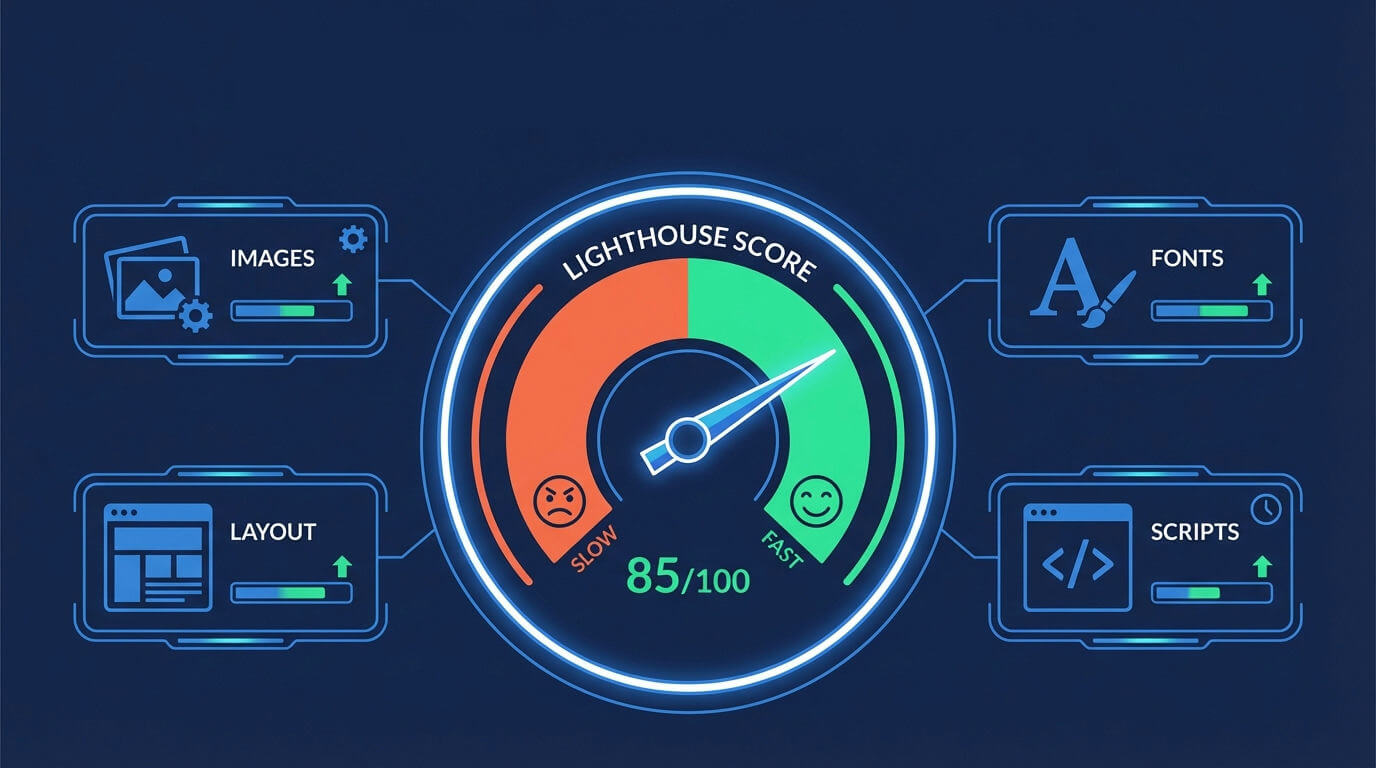
To improve your HubSpot website's Lighthouse scores, focus on the elements you can control: meticulously optimize your images, stabilize your page layout to prevent shifts, ensure fast font loading, and ruthlessly audit all third-party scripts.
What You'll Learn
This guide provides a clear, actionable strategy for boosting your HubSpot site's performance. You’ll walk away knowing:
- Why your HubSpot site can feel fast but still score poorly on Google Lighthouse.
- The specific Lighthouse metrics you can control within the HubSpot CMS (and which ones to ignore).
- A four-step plan for optimizing images, fonts, layout, and scripts.
- How to adopt a HubSpot Sites for Speed mindset to achieve higher Lighthouse scores and improve user experience.
The HubSpot Speed Paradox: Fast for Users, Slow for Google?
You’ve built a beautiful website on the HubSpot CMS. To you, and likely to your visitors, it feels snappy and responsive. But when you run a Google Lighthouse report, the "Performance" score—especially for mobile—is lower than you expected.
What gives?
This is a common frustration. Lighthouse is a tool built by Google to audit a page's performance through a specific, technical lens. It measures metrics that aren't always obvious to the human eye, such as how long it takes for the largest element to appear or if the layout shifts during loading.
While HubSpot manages many server-level optimizations, some Lighthouse warnings like efficient cache lifetimes or render-blocking requests are often tied to the core theme and infrastructure. You can't easily fix them.
Instead of getting frustrated, the key is to adopt a HubSpot Sites for Speed strategy: focus intensely on the high-impact areas you can control.
Your 4-Point HubSpot Speed & Lighthouse Score Action Plan
Let's break down the four areas where you can make the biggest difference in your Lighthouse Performance score.
1. Master Your Media: Image Optimization is Non-Negotiable
Oversized, uncompressed images are the single most common cause of poor performance scores. Lighthouse is extremely sensitive to image weight and dimensions.
- The Problem: Uploading a 2MB, 4000px-wide photo for a space that's only 800px wide on the screen forces the user's browser to download and resize a massive file, killing your load time.
- The HubSpot Sites for Speed Solution:
- Resize Before Uploading: The most critical step. Use a simple tool to resize your images to the exact dimensions they will appear on the page before you upload them to the HubSpot File Manager.
- Compress Aggressively: Use tools like TinyPNG or Squoosh to compress images, significantly reducing file size with minimal loss in quality.
- Choose Modern Formats: Whenever possible, use next-gen formats like WebP, which offer superior compression compared to JPEG and PNG.
- Enable Lazy Loading: In your HubSpot module settings, ensure that lazy loading is enabled for images that are below the fold. This prevents them from loading until a user scrolls near them.
2. Stabilize Your Layout: Eliminate Cumulative Layout Shift (CLS)
Cumulative Layout Shift (CLS) is a core Lighthouse metric that measures visual stability. It penalizes pages where content—like text, buttons, or ads—jumps around as the page loads.
- The Problem: An image without defined dimensions loads, and once it appears, it pushes all the text below it down the page. A user trying to click a button might miss it because the layout shifted. This creates a jarring experience and a poor CLS score.
- The HubSpot Sites for Speed Solution:
- Always Set Image Dimensions: Within your HubSpot image modules, ensure that width and height attributes are always specified. This reserves the space for the image on the page so other content doesn't have to move when it finally loads.
- Pre-load Key Fonts: Work with your developer to ensure that any custom or crucial fonts are pre-loaded, preventing a "flash of unstyled text" that can cause minor layout shifts.
- Be Careful with Dynamic Content: Avoid inserting banners or other content above existing content after the page has started to render.
3. Fine-Tune Your Fonts: Ensure Text is Always Visible
Lighthouse often flags the warning "Ensure text remains visible during webfont load." This refers to a phenomenon where your text is invisible until the custom font file has been fully downloaded.
- The Problem: Users on slower connections see blank spaces where text should be, which is a poor experience and hurts your performance score.
- The HubSpot Sites for Speed Solution:
- Implement
font-display: swap;: This simple CSS declaration is the fix. It tells the browser to immediately show your text using a standard system font, then "swap" it for your custom font once it's loaded. The text is always visible. Check your theme's CSS or your child theme's stylesheet to ensure this is implemented for your@font-facerules.
- Implement
4. Audit Your Scripts: The Third-Party Cleanup
Every marketing analytics tool, chat widget, or heatmap you add to your site comes with a JavaScript file. Each script adds to your page's weight and can increase its load time. While you can't fix HubSpot's core JS calls, you can control your own.
- The Problem: Your site might be loading scripts for tools you no longer use, or loading all scripts on every single page, even when they're only needed on one.
- The HubSpot Sites for Speed Solution:
- Conduct a Script Audit: Make a list of every third-party script running on your site. Ask yourself for each one: "Is this essential? Are we actively using the data from this tool?" If not, remove it.
- Consolidate with Google Tag Manager (GTM): Move all your marketing and analytics tags into GTM. This is a core tenet of the HubSpot Sites for Speed methodology. GTM provides a central dashboard to manage these scripts, makes it easier to remove old ones, and allows you to set up rules so that certain scripts (like a webinar platform's tracking) only load on the specific pages where they are needed.
The Bottom Line: Control the Controllables
Improving your HubSpot website’s Lighthouse score isn't about chasing a perfect 100 by fixing every little warning. It’s about a strategic focus on the items that have the biggest impact and are fully within your control.
By adopting this HubSpot Sites for Speed approach—optimizing media, stabilizing layouts, fine-tuning fonts, and cleaning up scripts—you directly address the most critical factors that Google values. The result is a better user experience, stronger SEO signals, and a Lighthouse score you can be proud of.
Share this
- October 2026 (1)
- September 2026 (2)
- August 2026 (2)
- July 2026 (5)
- June 2026 (7)
- May 2026 (4)
- April 2026 (24)
- March 2026 (43)
- February 2026 (20)
- January 2026 (20)
- December 2025 (1)
- November 2025 (1)
- September 2025 (34)
- August 2025 (7)
- July 2025 (1)
- June 2025 (2)
- May 2025 (2)
- April 2025 (3)
- March 2025 (2)
- February 2025 (1)
- January 2025 (1)
- December 2024 (3)
- August 2024 (1)
- July 2024 (2)
- June 2024 (17)
- November 2022 (1)
- February 2022 (1)
- July 2021 (1)
- June 2021 (1)
- May 2019 (1)
- March 2019 (1)
- February 2019 (1)
- October 2018 (1)
- September 2018 (1)
- April 2018 (1)
- March 2017 (1)
- December 2016 (2)
- September 2016 (2)
- January 2016 (1)
- April 2015 (2)
- March 2015 (2)
- February 2015 (1)
- January 2015 (1)
- December 2014 (1)
- September 2014 (1)
- April 2014 (1)
No Comments Yet
Let us know what you think